

Overview
Project settings do not affect your app’s underlying structure, but they help you control how the editor looks to you, how your project appears to users, and how objects behave while designing.Editor Appearance
Choose to work in light or dark mode.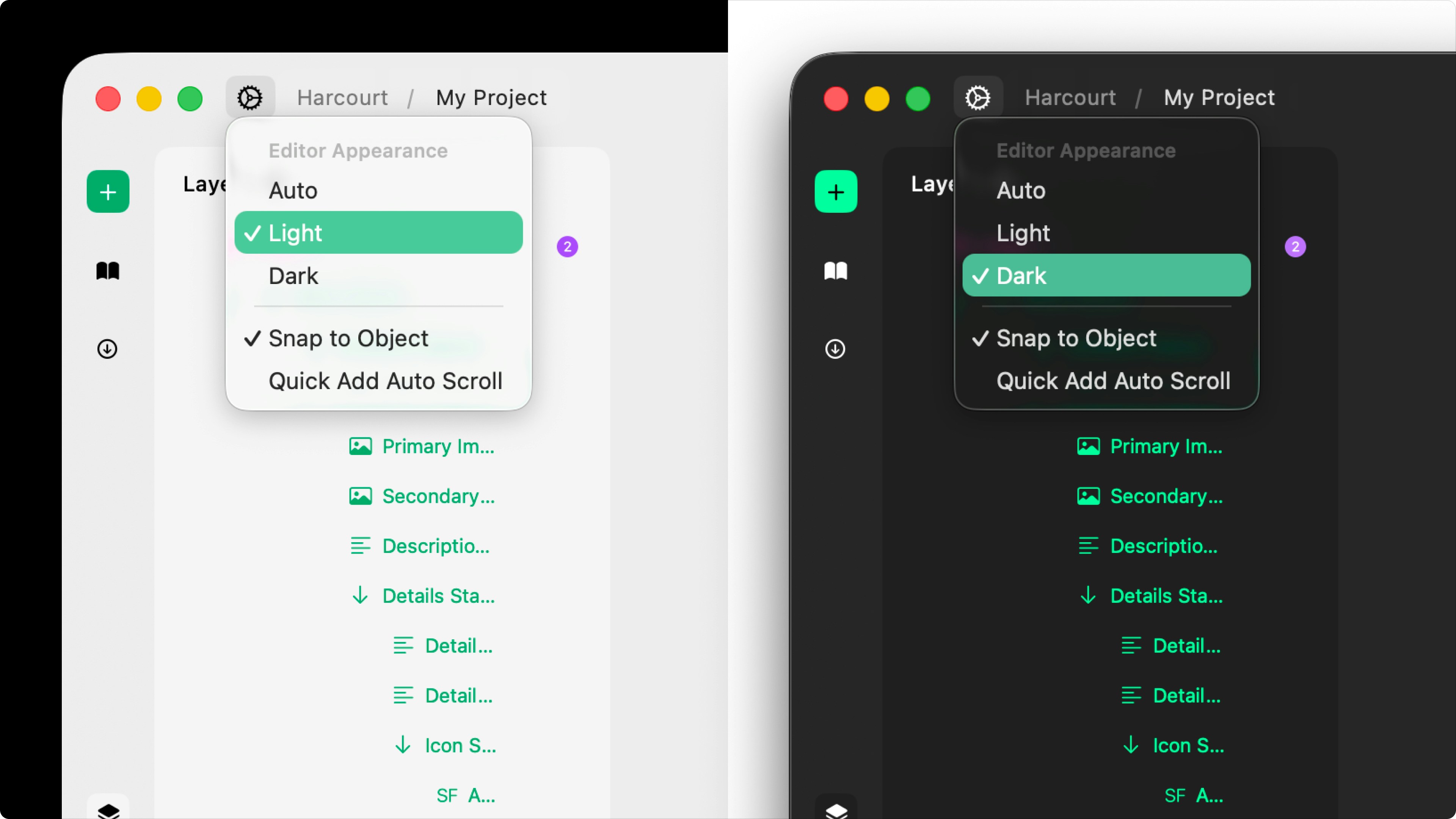
The editor appearance will NOT affect the project/prototype’s appearance.
Project Appearance
Choose your project’s UI appearance: auto, light, or dark:- Auto: Your project will inhereit the UI appearance of the device they’re viewing your prototype on. i.e. Phones in dark mode will display the prototype in dark mode and vise versa.
- **Light: **Your project will always be in light mode, regardless of the user’s system UI settings.
- Dark: Your project will always be in dark mode, regardless of the user’s system UI settings.
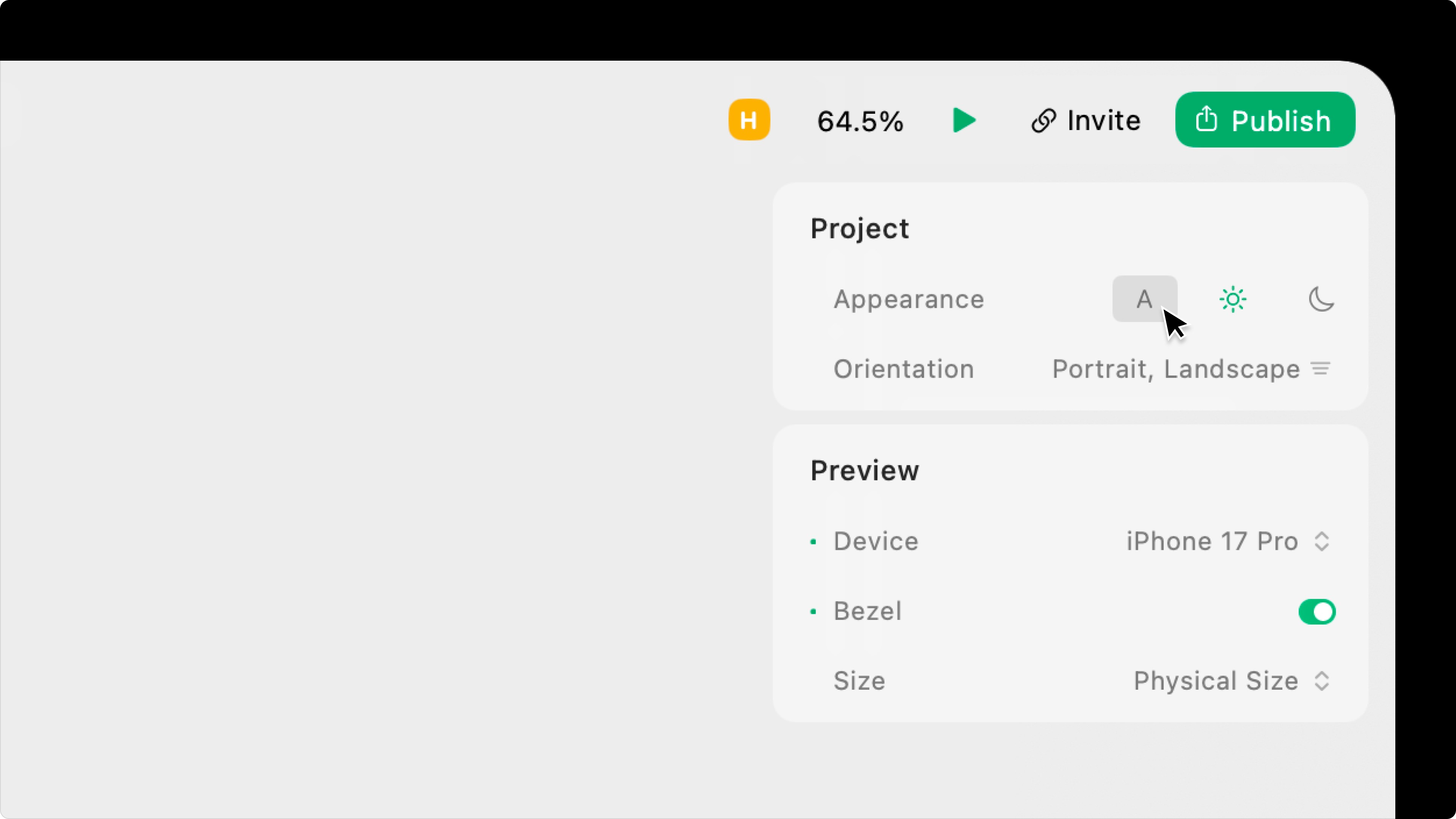
The project appearance only matters if you’re using System Colors (primary, secondary background, etc.) or custom Color styles with defined light and dark mode.
Orientation
Play allows you to design Portrait apps or Landscape apps that are responsive across all device sizes. In Design or Interaction Mode, you can choose the initial orientation and the preview iOS or iPad device size. Read more about orientation.Other Settings
Snap to Object
Choose to enable or disable snapping:- On: Dragging objects in the canvas will “snap” to align with nearby objects.
- Off: Dragging objects in the canvas will not automatically align with nearby objects.