

Overview
Assets are organized and managed in the Library, accessible by clicking the book icon in the left sidebar. Assets include images (PNG, JPG, SVG), videos (MP4, MOV), fonts (OTF, TTF), and JSON files. From the Library, you can upload, rename, delete, and search through all assets used in your project.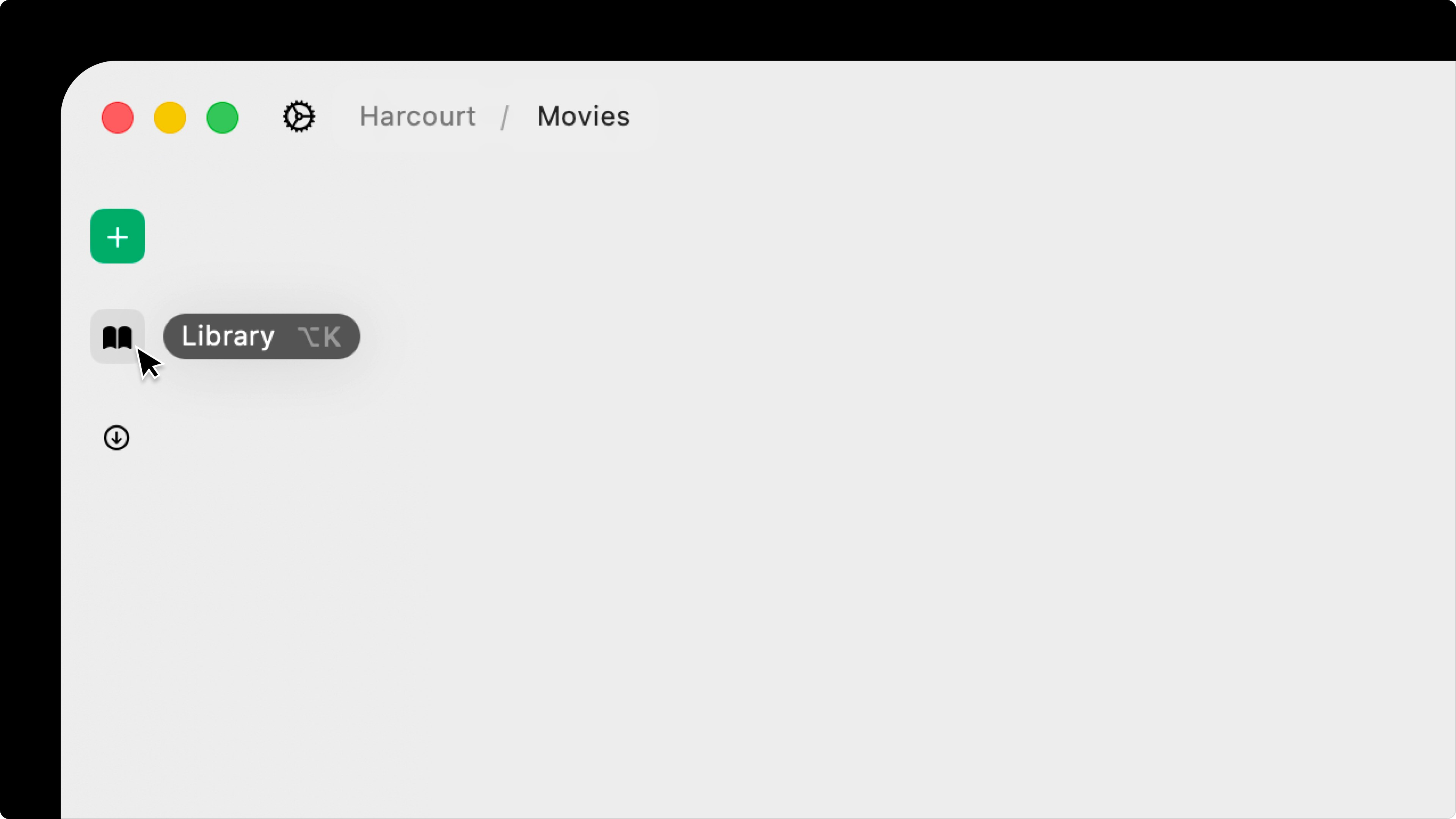
Upload Assets
Assets can be uploaded in several ways.Library
- Click the Library icon in the left sidebar.
- Navigate to the Assets tab.
- Use the Upload button to add files from your computer.
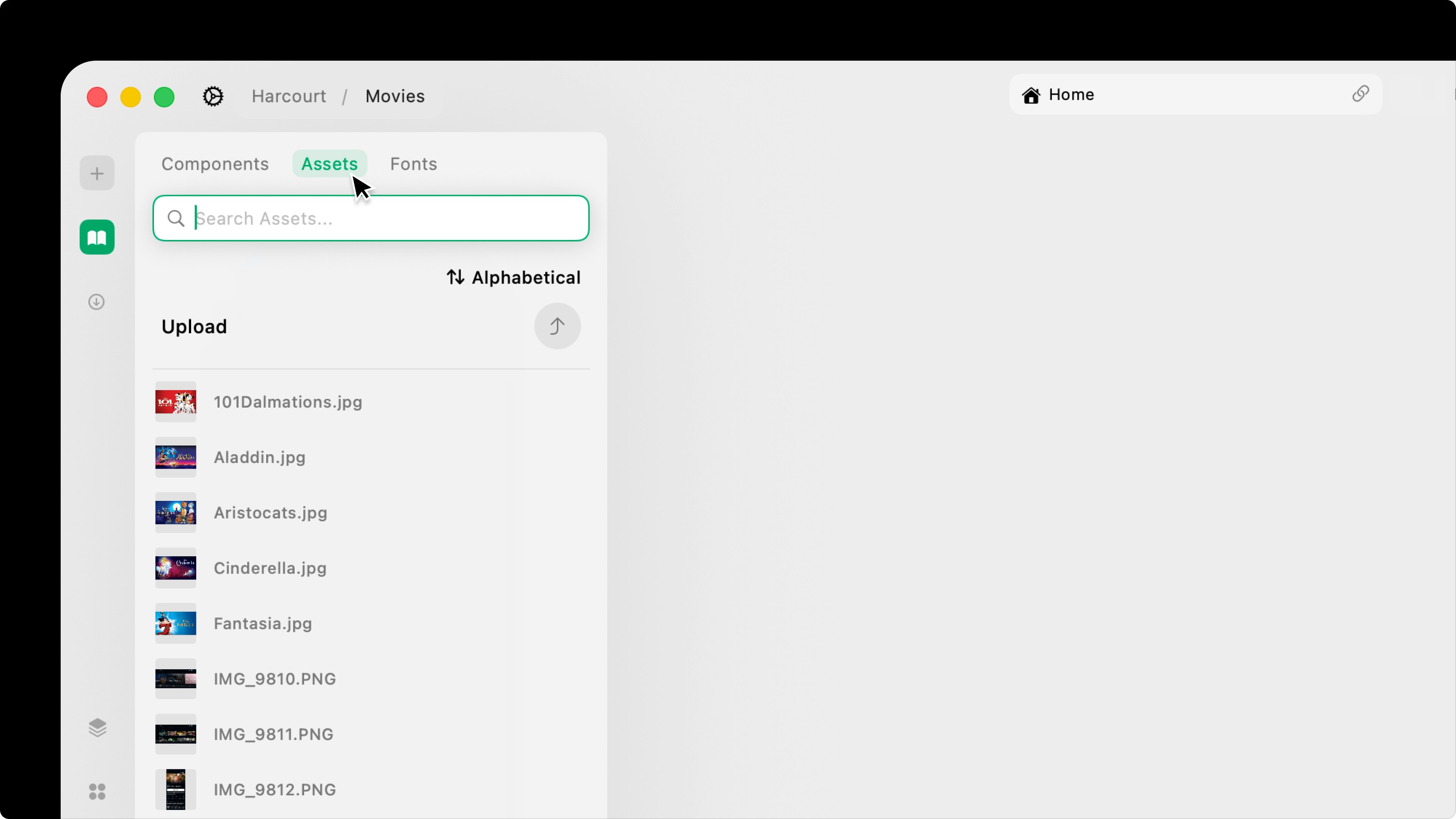
Drag and Drop
You can also drag supported files directly into the canvas. This automatically uploads the file to your project and adds the asset to the Library.From an Element
When working with an Image, Video, or SVG element, the element’s first property in the settings panel lets you open its built-in asset picker (e.g., the Image property for Image elements). From this panel, you can browse all assets, upload new ones, and switch between assets quickly.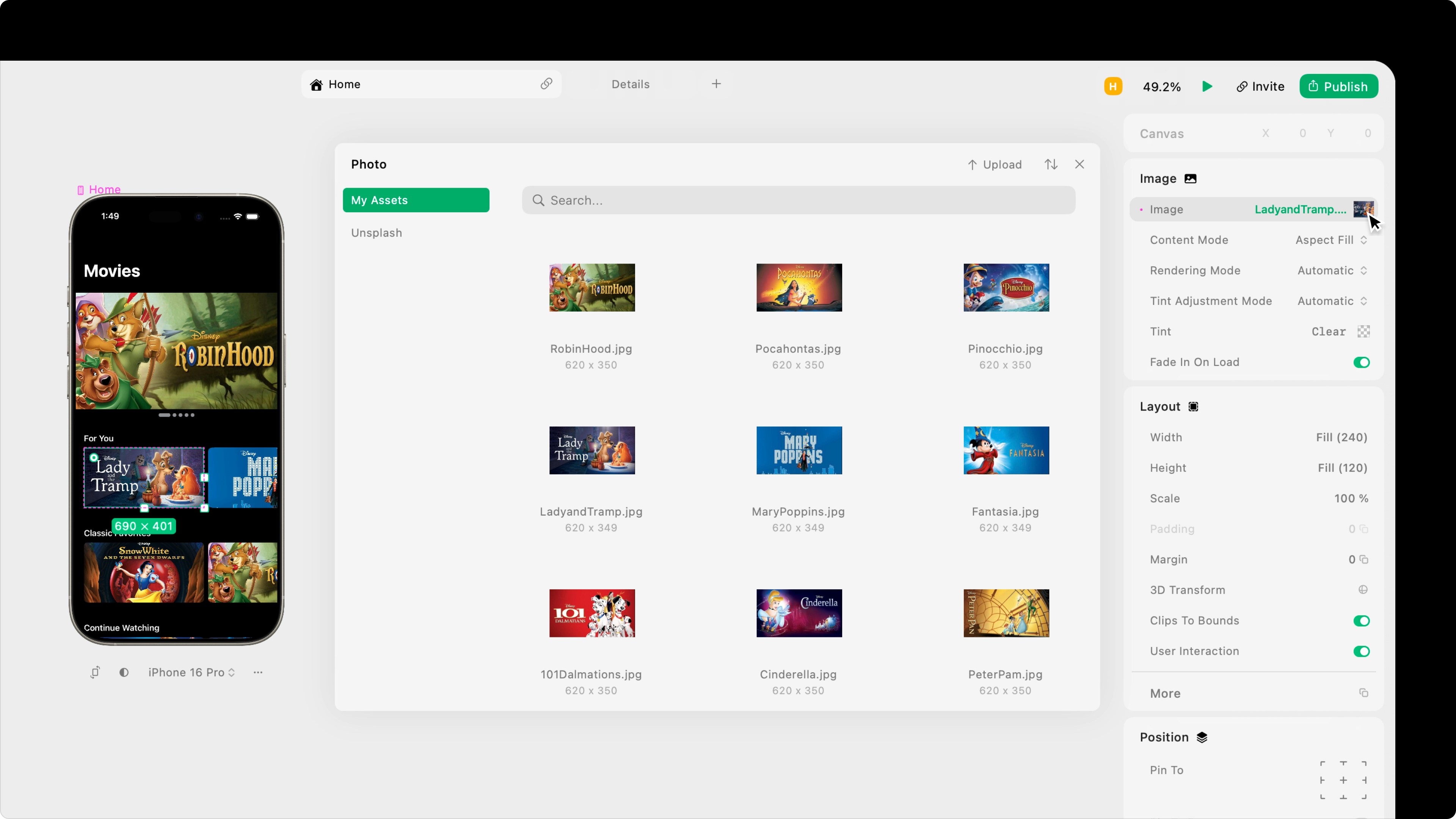
Manage Assets
From the Library’s Assets tab, you can search assets by name, sort them alphabetically or by date added, and right-click any asset to rename or delete it.Deleting an asset removes it from your project entirely, including any element or component where it is currently used. This action cannot be undone.