
Overview
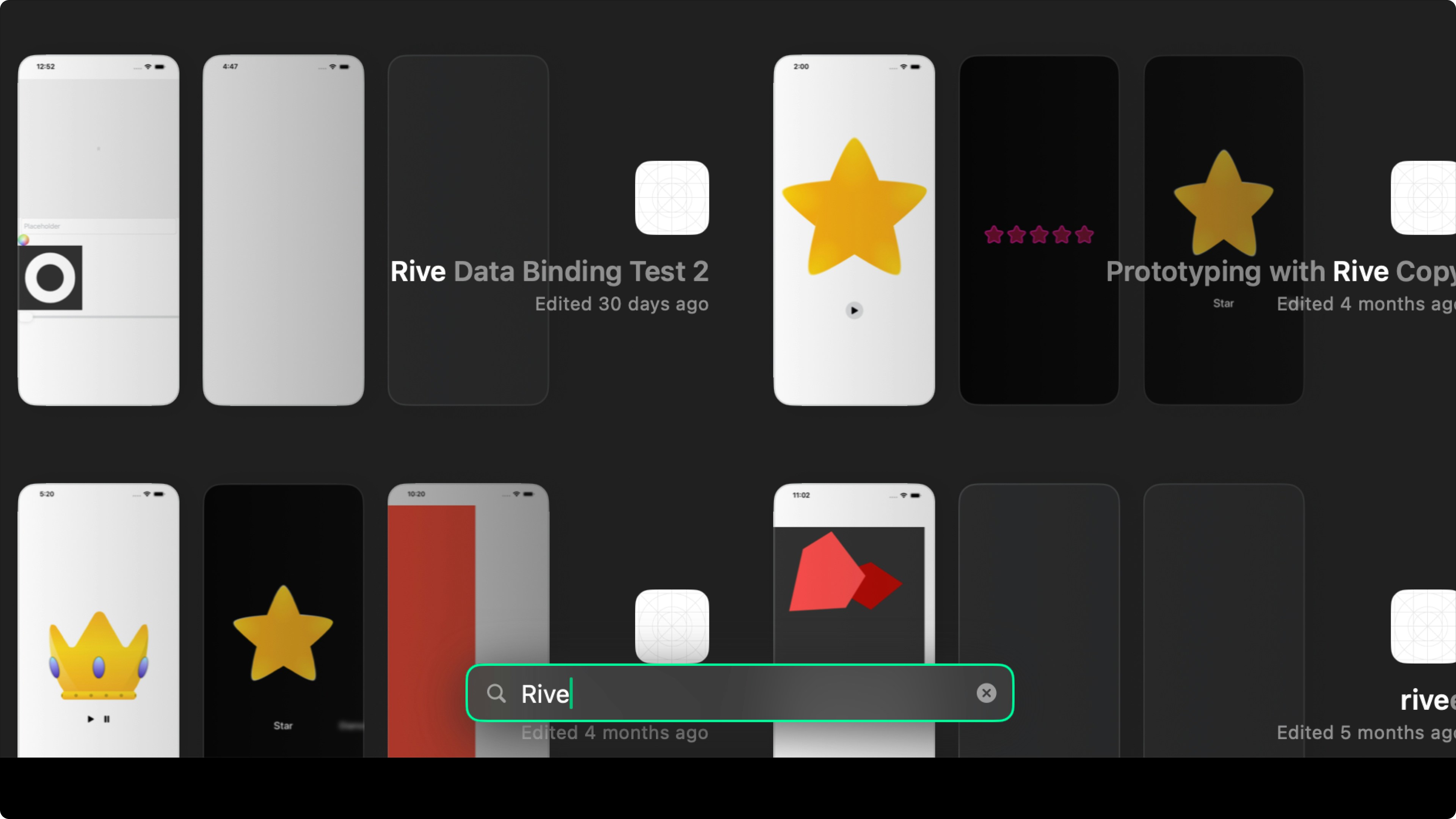
To keep your workspace tidy, Play offers several organizational features. You can categorize projects using tags, which automatically create subfolders in your project list, quickly search for any project by name, and access your most recently opened projects in the Recents tab.Tags
Create a Tag
When you create a tag, Play creates a corresponding folder and adds the tag to a list of available tags for each project. You can create a tag in two ways:Click on "New Tag" under "Projects" in the left sidebar
This creates the tag and its folder without assigning it to any project.

Folders are sorted alphabetically in the left sidebar.
Tag Projects
To add a tag to a project, hover over the project and click the tag icon. You can chose from existing tags or create a new one. Each project can have an unlimited number of tags.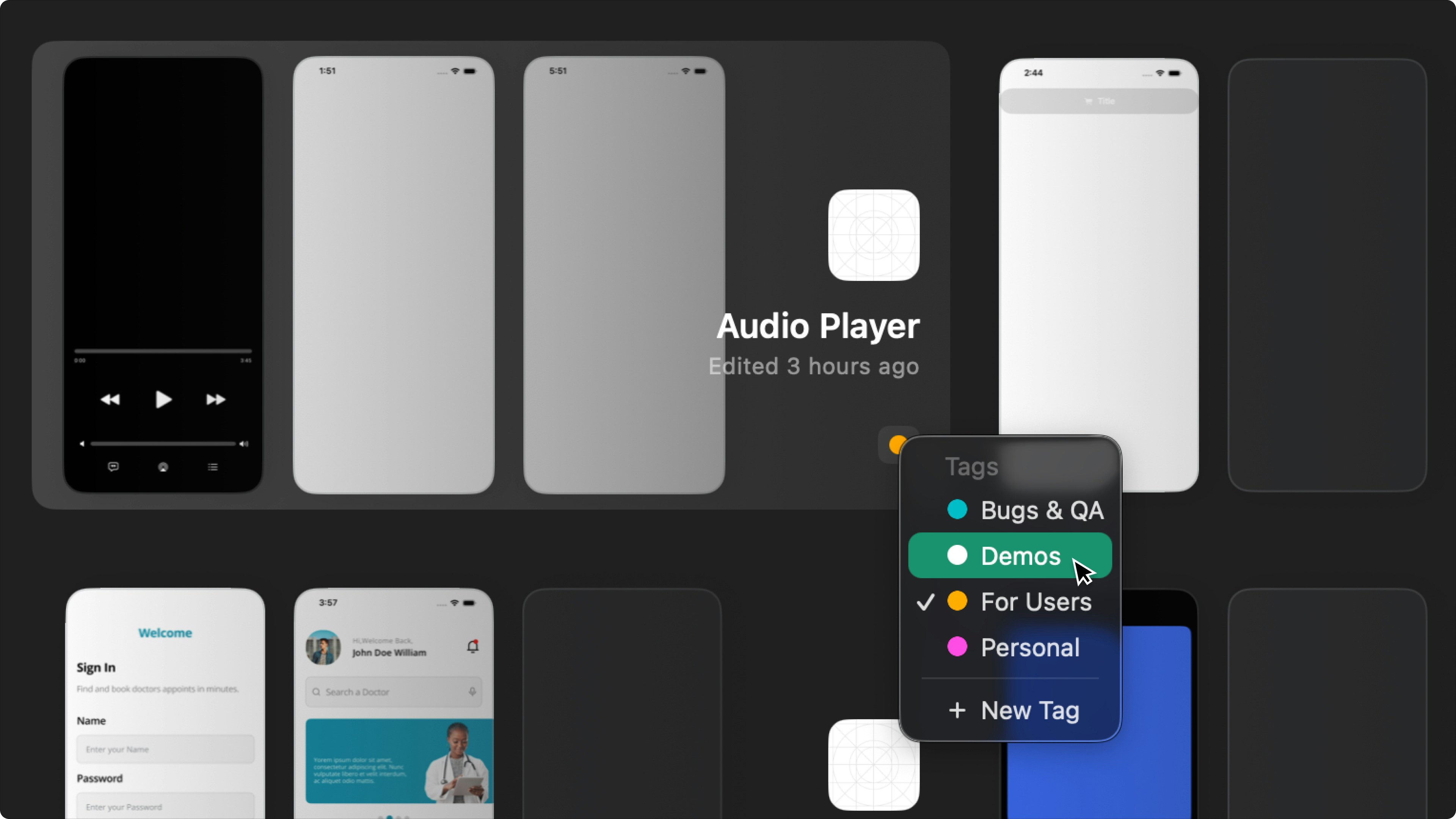
Manage Tags
After a tag is created, you can rename it, change its color, and delete it. Hover over the tag in the left sidebar, click the edit icon, and choose the desired action.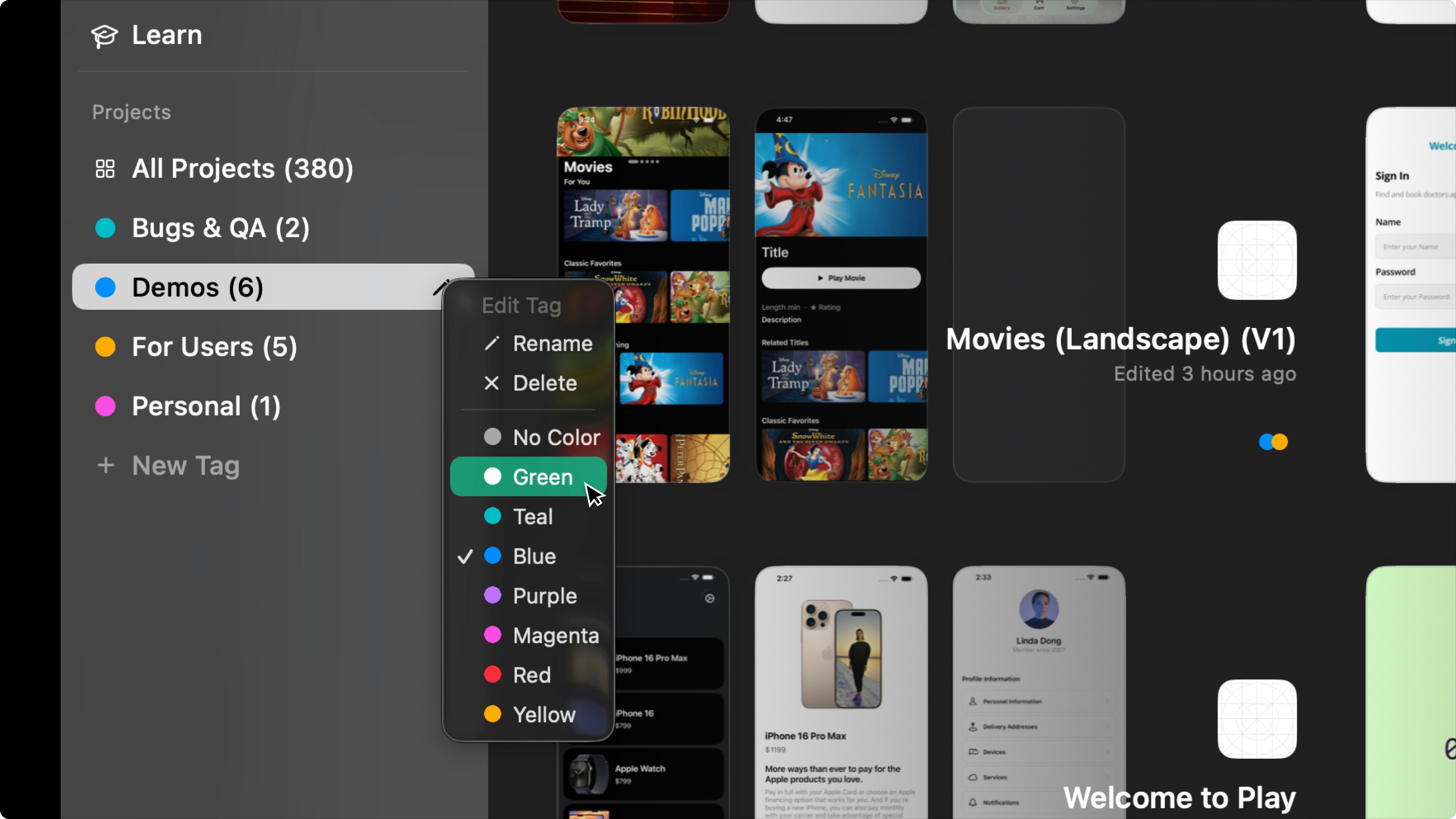
Search Projects
Within each folder, you can search for projects by name.