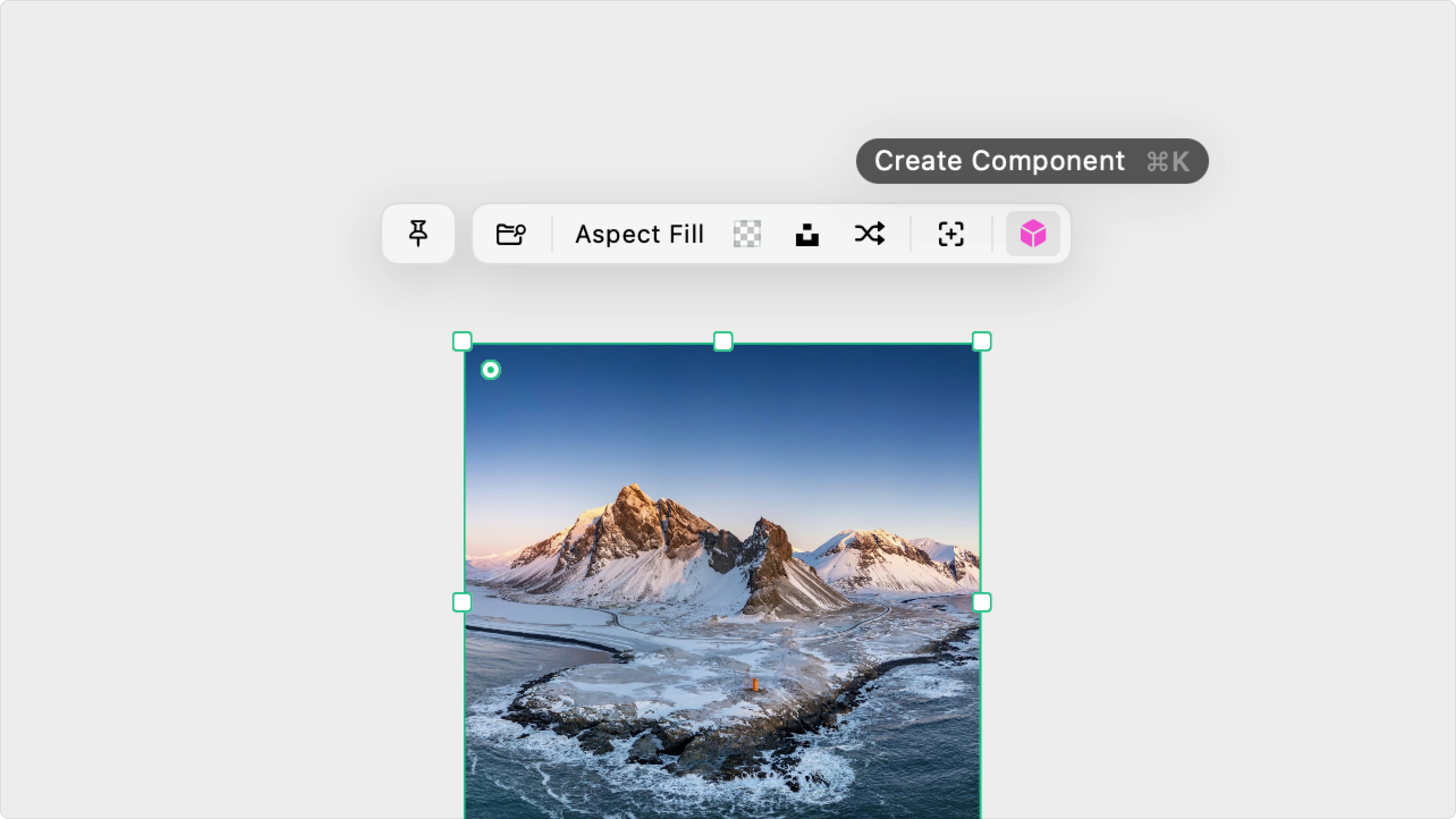

Overview
Each object has a toolbar that appears above the object when it’s selected. The context bar includes common properties from the attributes panel, so you can reduce your mouse travel as you edit the object. Each object’s context bar will be different based on the selected object’s element settings. There are a few actions that exist across most objects.Pin Selection
To keep the same view displayed on iOS Play Mode, rather than changing the view based on the selection on macOS, you can lock the selection. Just Pin the Selection.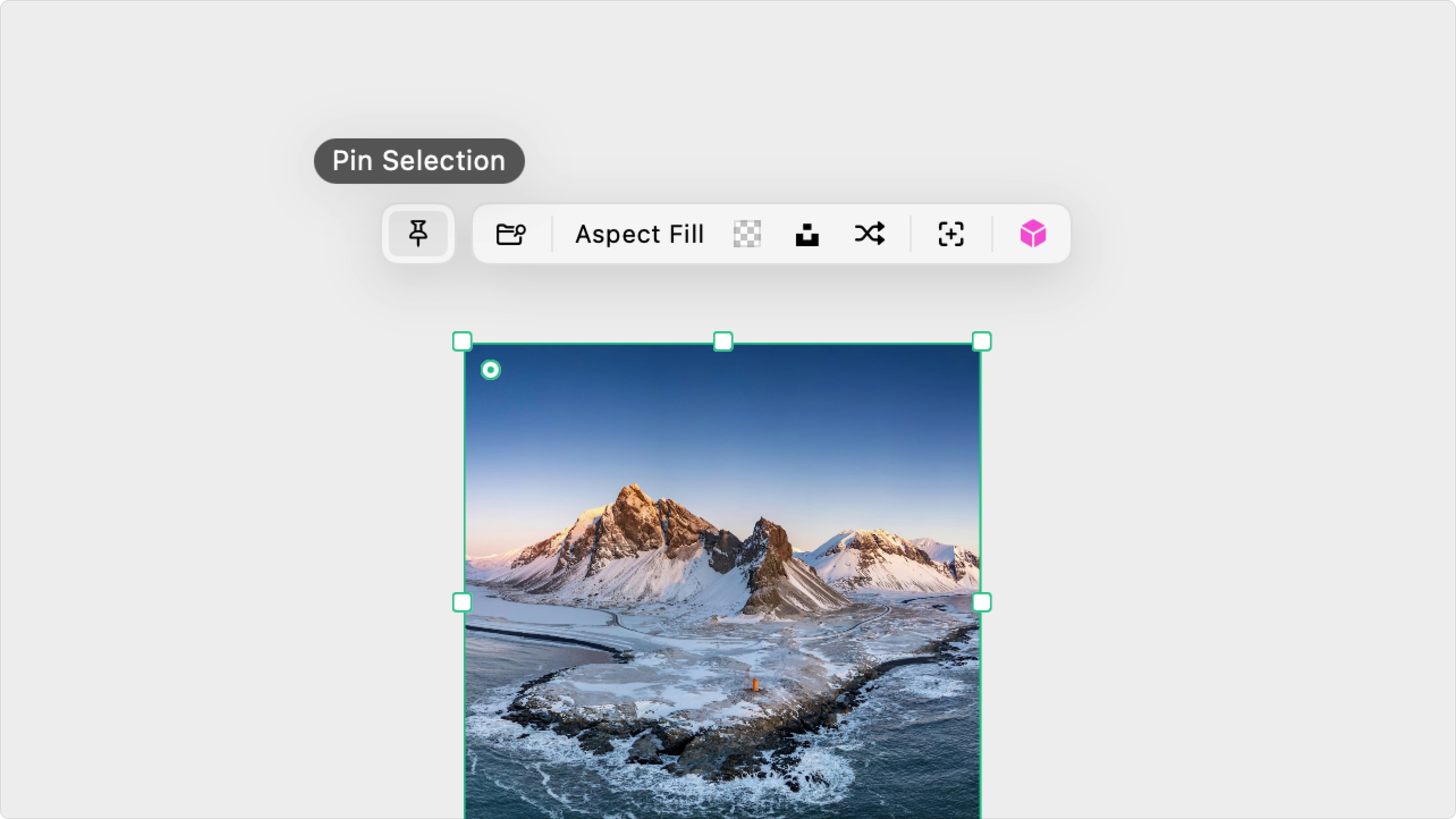
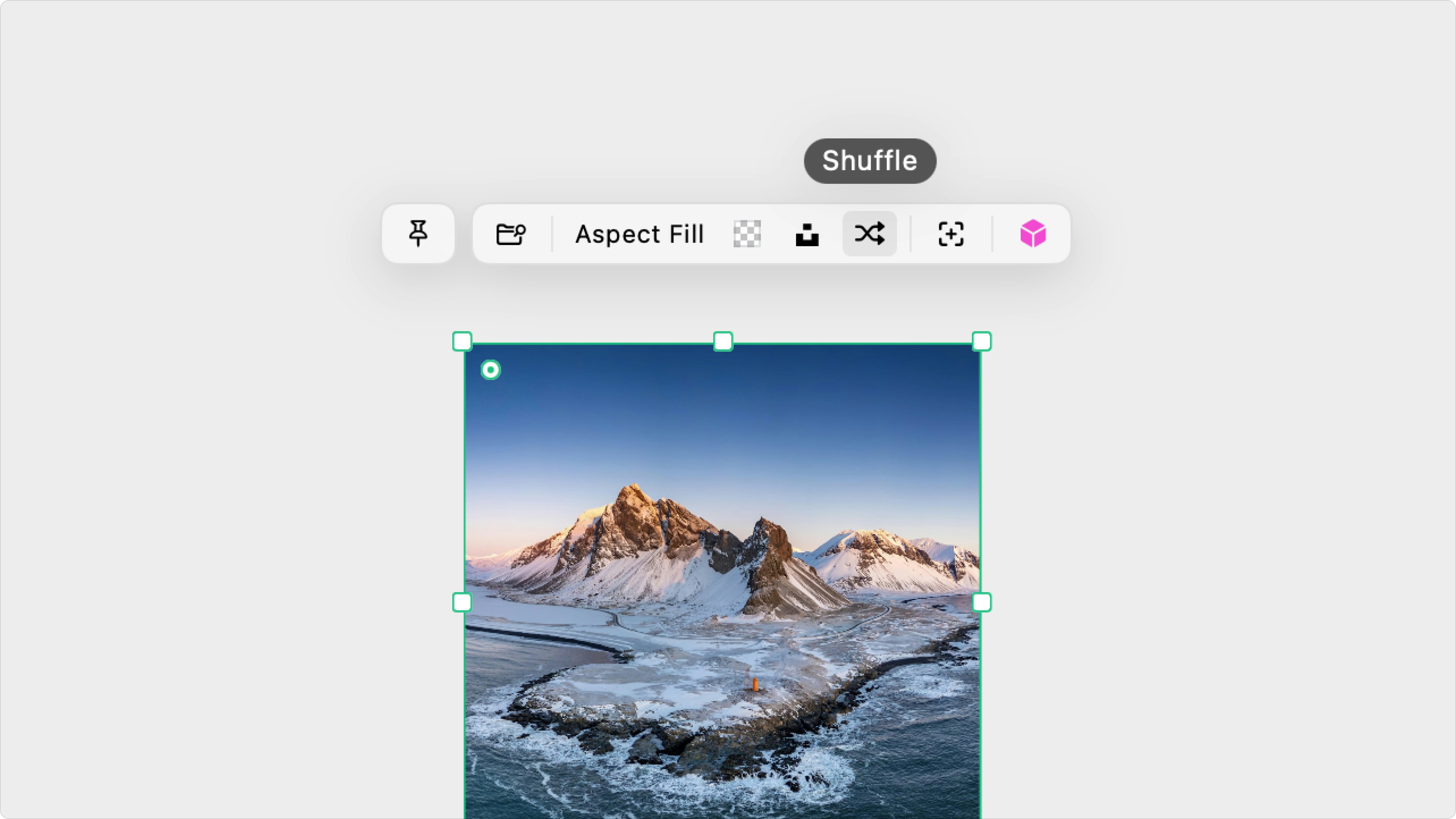
Shuffle
Shuffle some objects’ content by clicking the shuffle icon.- Text elements will shuffle content based on the selected placeholder (ie. shuffling new long headlines)
- Image elements will shuffle the image data from Unsplash or your assets
- Charts will shuffle the chart’s appearance (ie. shuffle different visual appearance of an area charts)
Position
Click the position icon, which is second from the right, to open a position pop-up above the object toolbar. Here you can pin the object to a position and adjust the X & Y offsets and the Z depth.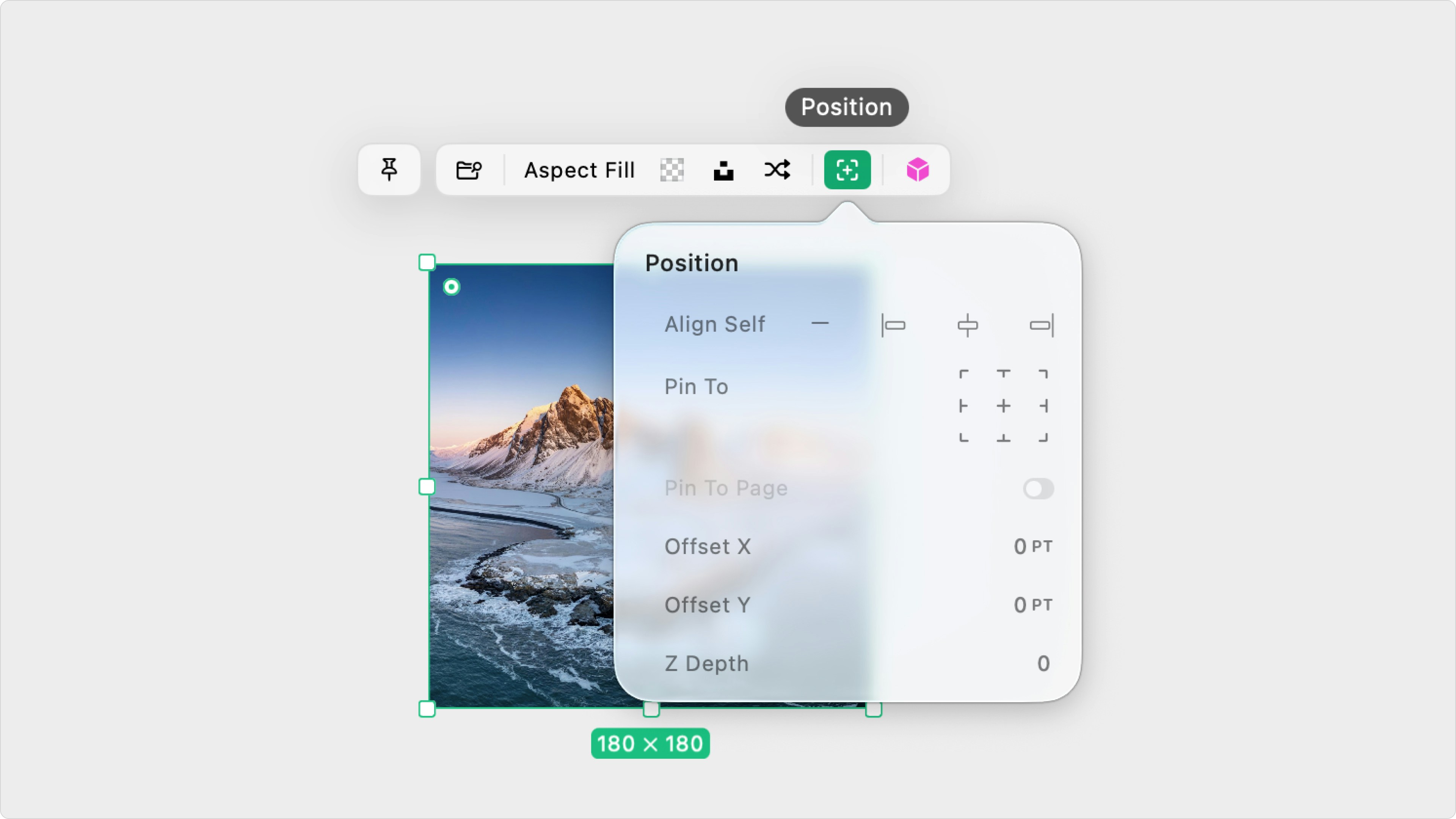
Create Component
Turn your object into a component by clicking the pink cube icon on the right side of the context bar. You can also use the keyboard shortcut CMD + K.