
Overview
In addition to using prefabs created by others, you can also create your own prefabs. Custom prefabs allow you to make interactions that are easy for you and your whole team to use over and over again. By setting your own prefab controls, you can make prefabs as customizable or as uniform as you’d like.Creating a Prefab
You can easily turn an existing interaction into a prefab by selecting all the triggers you’d like to include, right-clicking, and wrapping them in a prefab.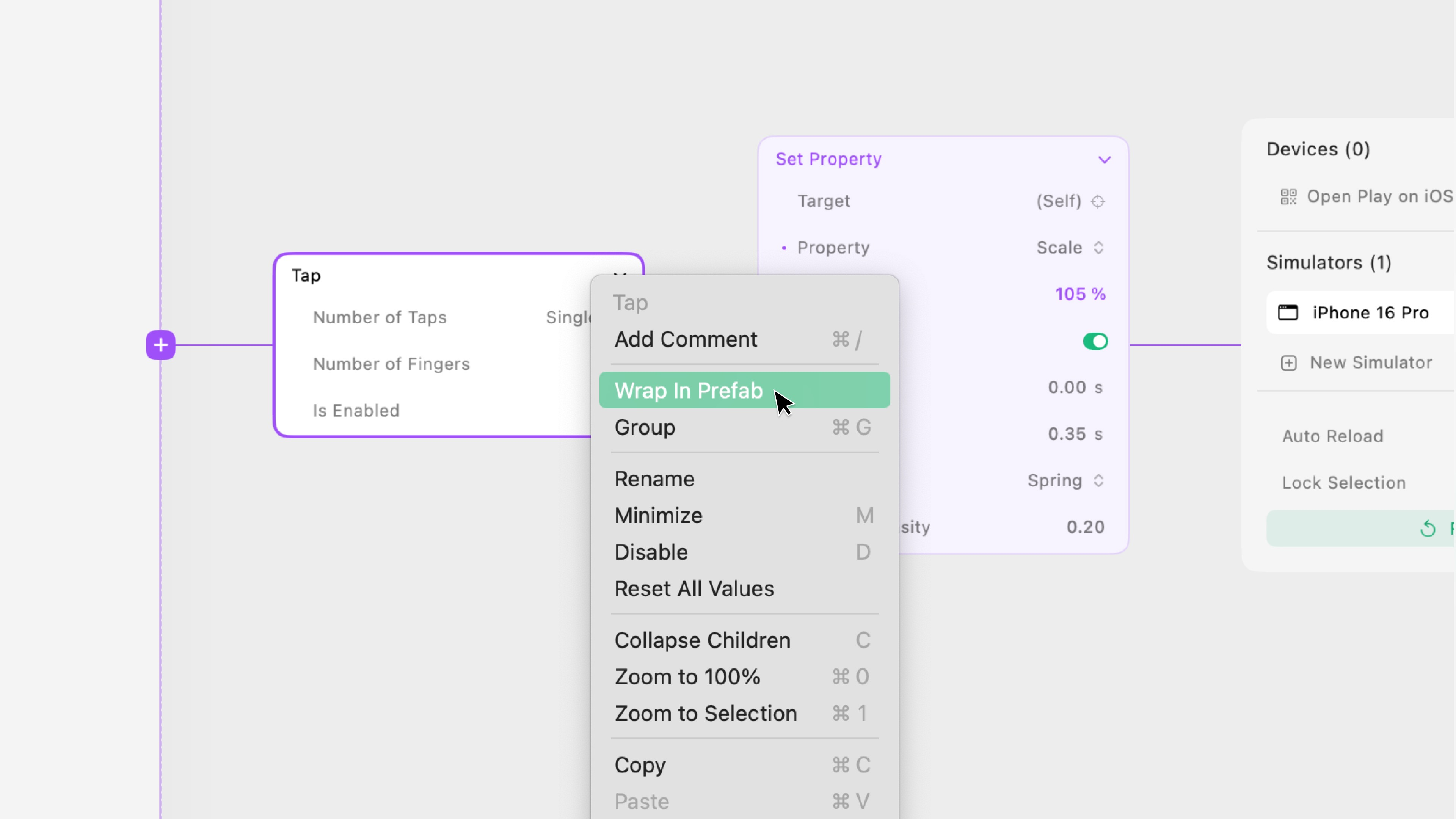
New Prefab from Scratch
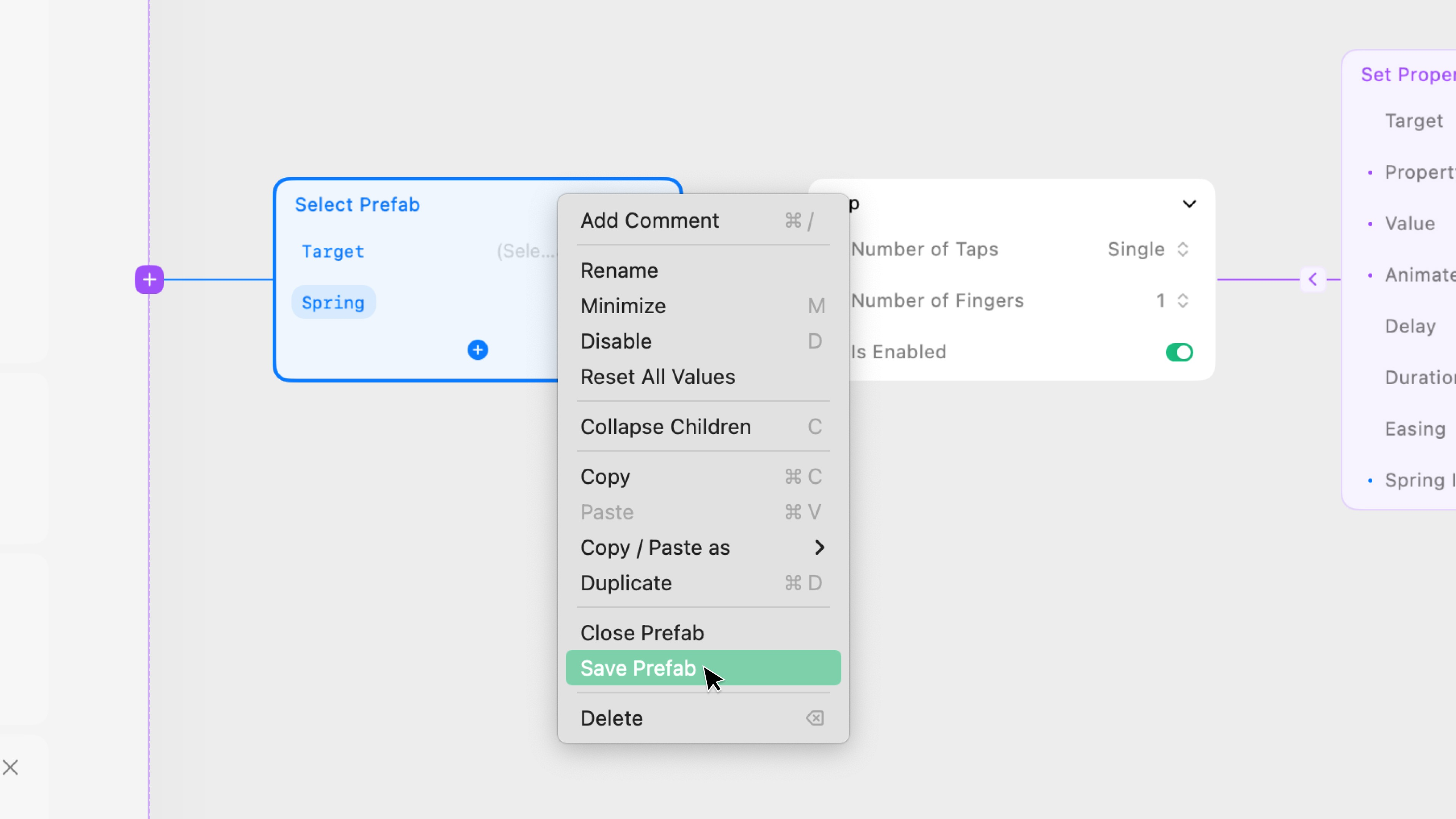
You can also start with an empty prefab shell by adding a “Add New Prefab” from the Quick Add Menu. Place interactions directly on the prefab node, and don’t forget to save the prefab.Editing Custom Prefabs
Once a prefab has been saved, it cannot be edited. If you’d like to make changes, you can save the prefab as a new prefab.Custom Prefab Controls
For custom prefabs, you can choose which properties you’d like users to be able to customize and add those as prefab controls. You can add as many or as few controls as you’d like. First, create the prefab control, and then connect the prefab control to a property on a node within the prefab.Creating a Prefab Control
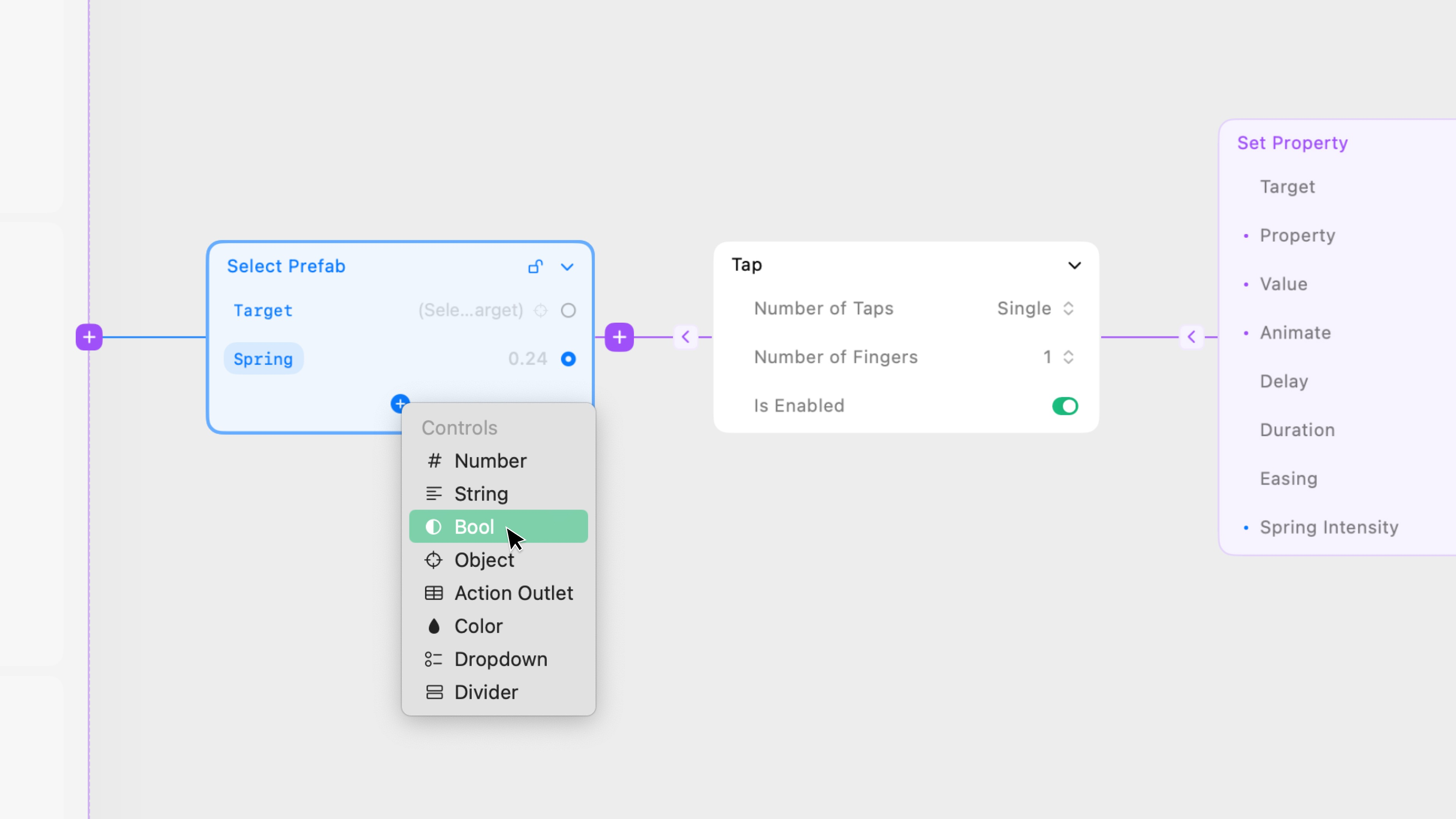
Click the plus button to add a new control. Each control has a type which defines which type of value users can input:- Number: Allows users to input a hard-coded number, number variable, or number expression.
- String: Allows users to input a hard-coded string, string variable, or string expression.
- Bool: Allows users to input a value as True (switch on) or False (switch off).
- Object: Allows users to input a selected Layer on the page.
- Action Output: Allows users to add actions outside the prefab that will fire based on this within the prefab.
- Color: Allows users to input a hard coded HEX value, a color variable, or a color function.
- Drop Down: Allows users to select an option.
- Divider: A divider between prefab controls.
Connecting a Prefab Control
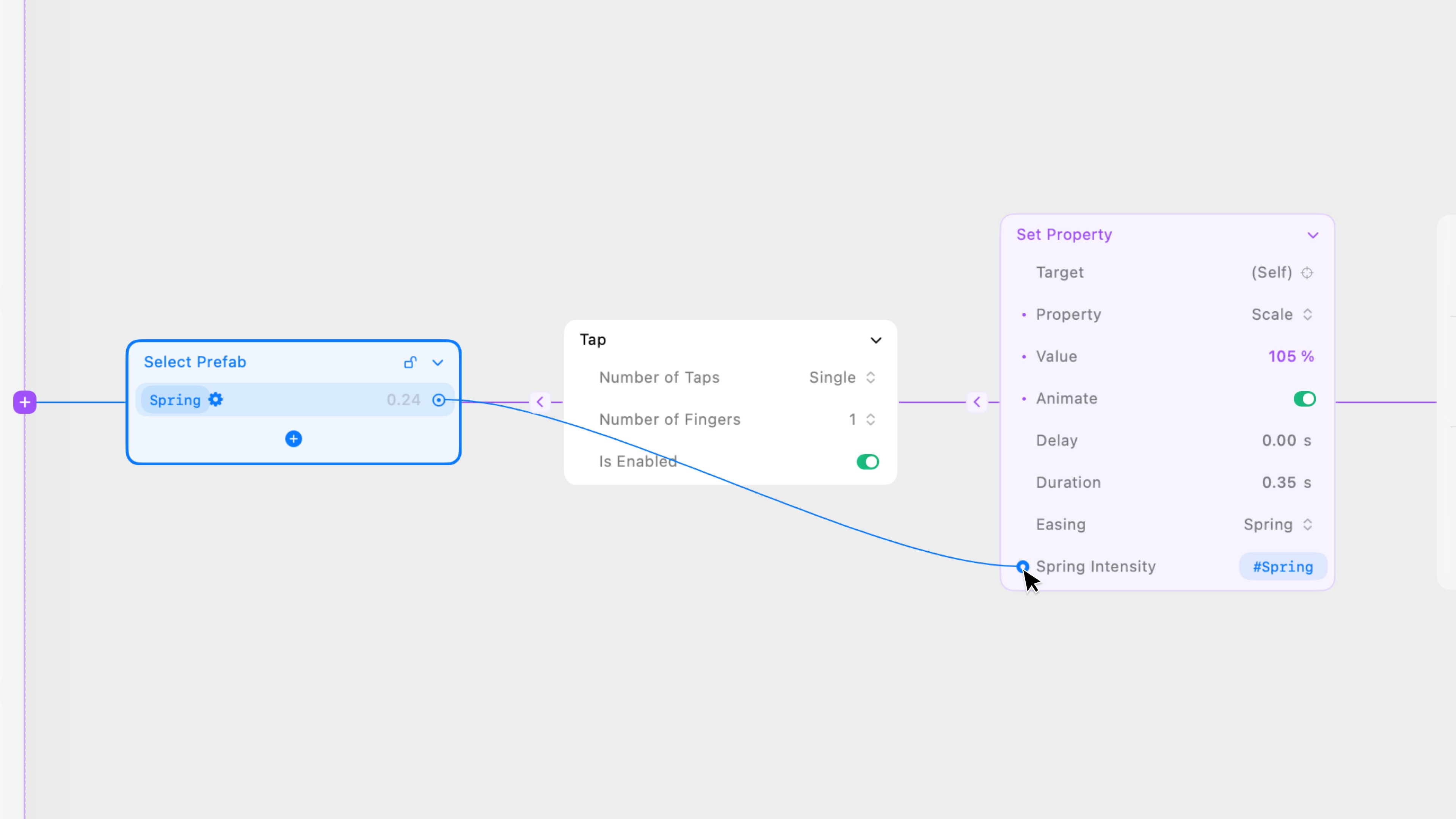
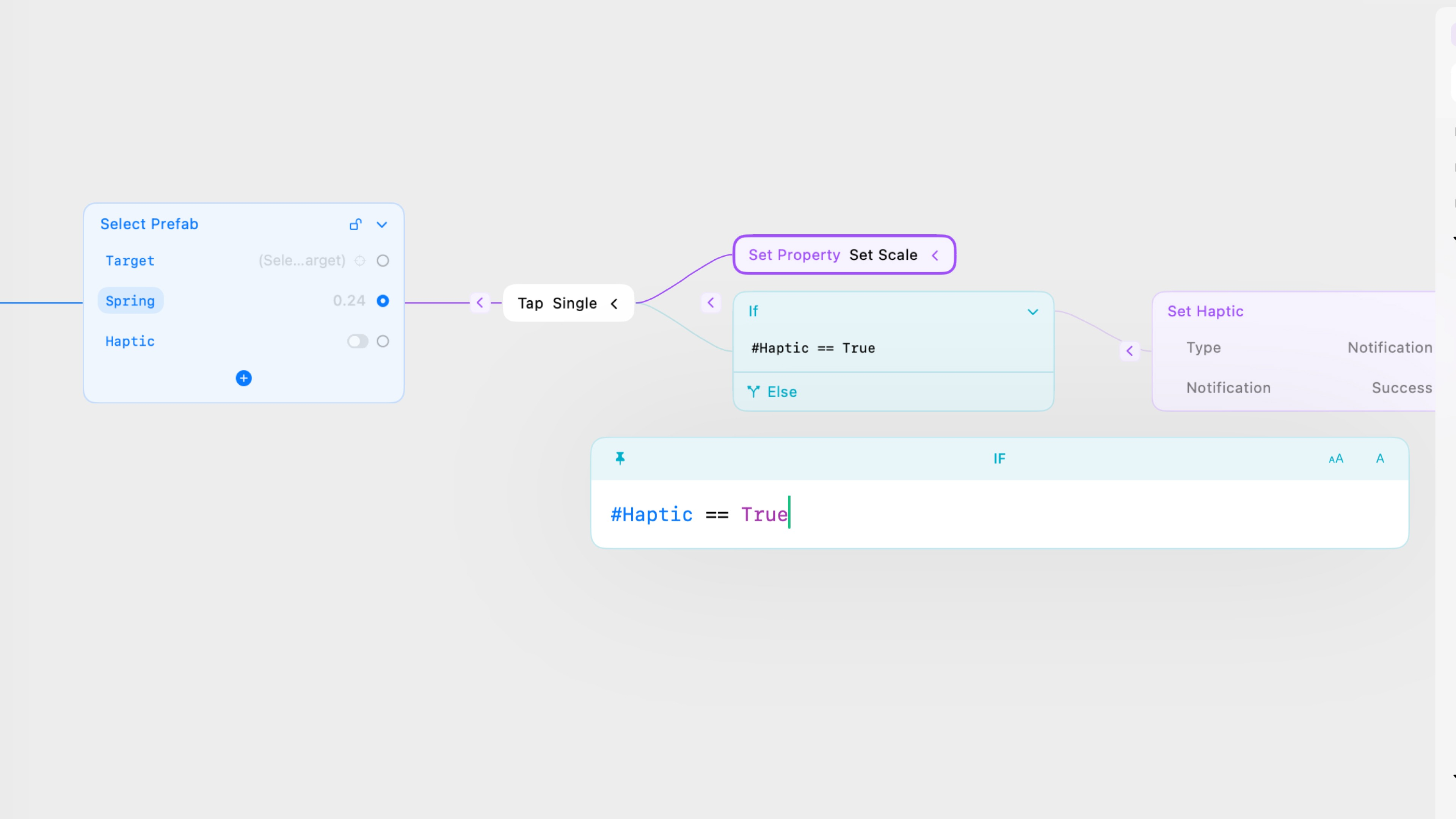
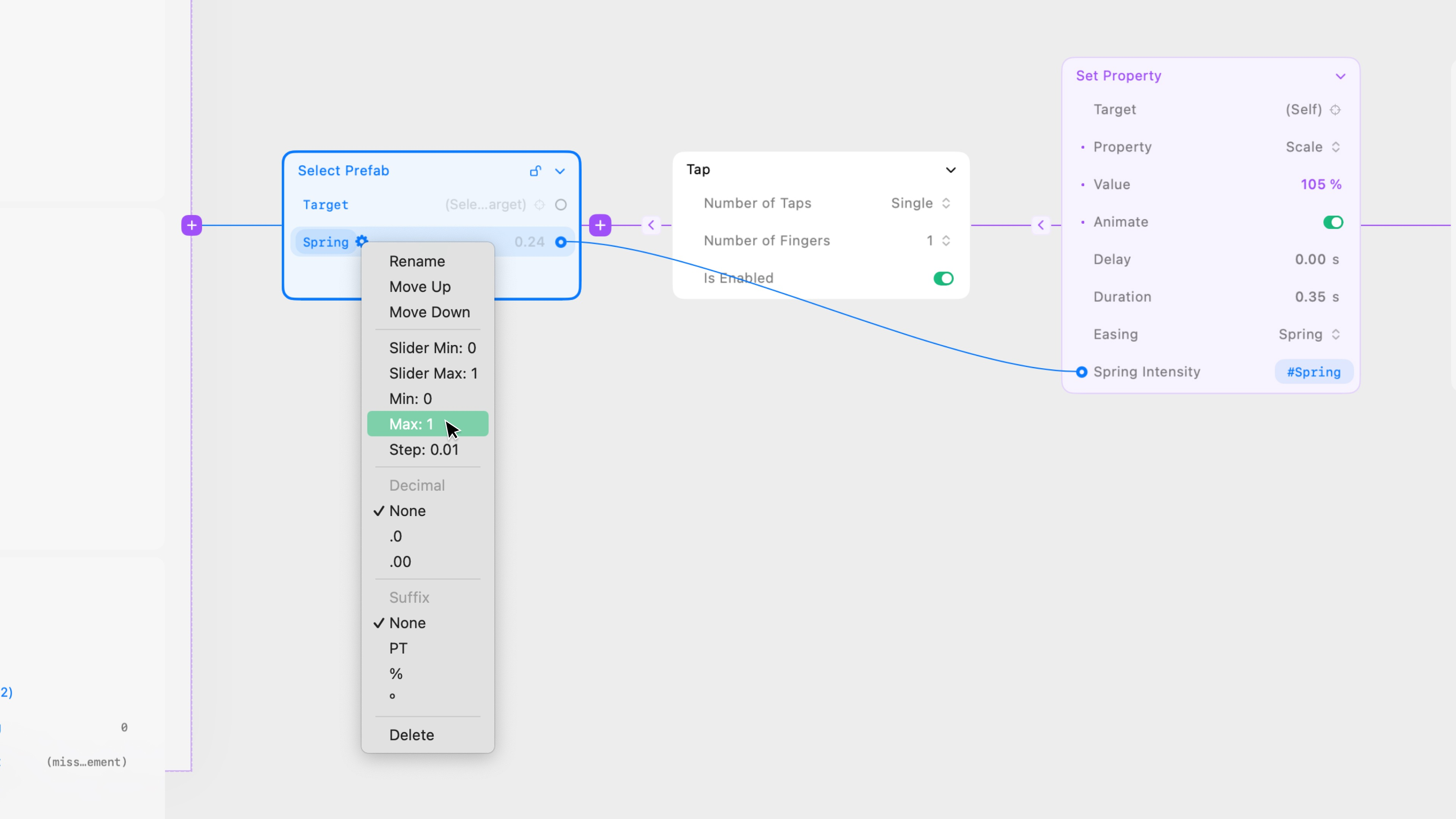
Prefab controls should be connected to properties within the prefab, which can be done in two ways. You can use the prefab control’s value directly as a property value by dragging the right edge of the prefab control to the left edge of the property or selecting the prefab control from the Expression Editor dropdown.